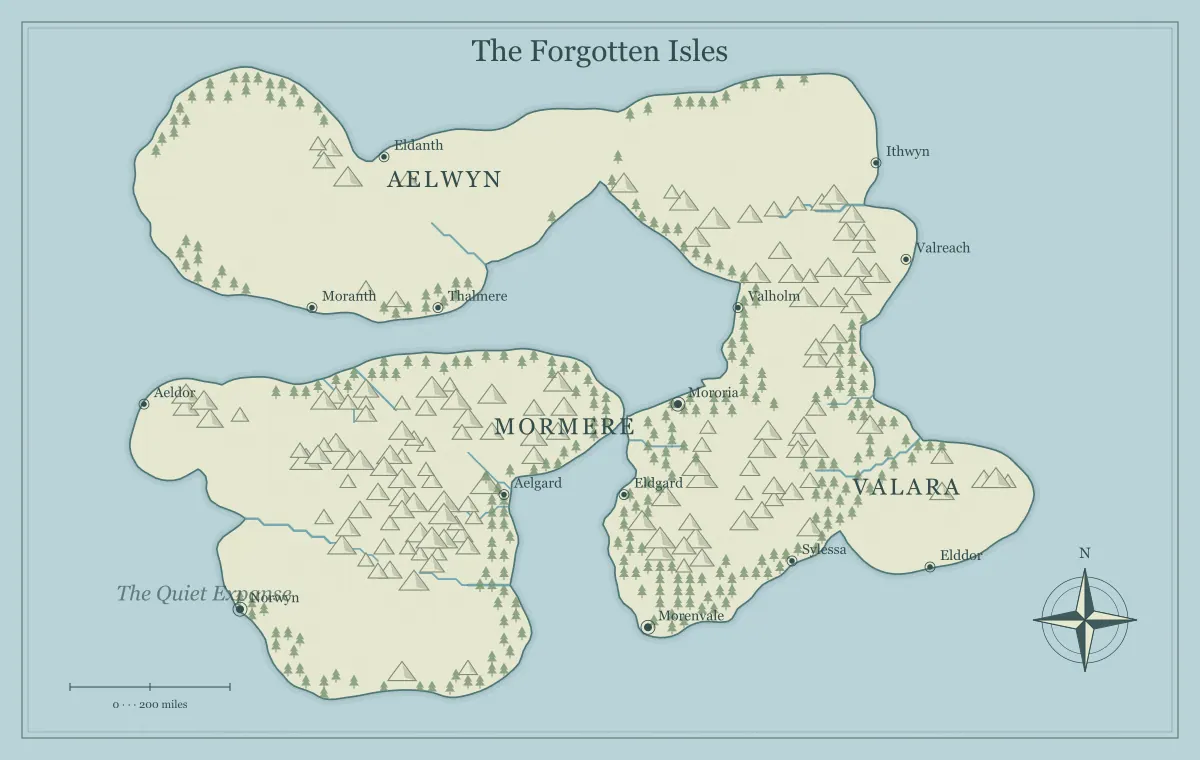
A fantasy map maker is most useful when you can return to the world you have already developed. A picture preserves appearance, but it does not necessarily preserve the settings and supported edits needed to continue working. This generator provides a separate editable JSON file for that purpose. Save it deliberately, identify its edition, and test that it reopens before treating the project as safely handed over or archived.
This guide follows a fictional map called the Alder Gate Reach through its first draft, a revised campaign edition, and a later reopening. The workflow uses the website's Save editable map and Open saved map actions. It also explains what browser storage, a seed, a share link, and an image export each contribute. Those conveniences overlap, but they are not interchangeable backups.
Identify what you are saving
The editable file contains the generator's supported settings and edits. Settings include the seed, map type, art style, terrain amounts, and display choices. Edits include changes to supported labels and added elements. The generator uses these data to recreate its rendering when the file is reopened. This is project data for this website, not a universal map format accepted by every other worldbuilding application.
A PNG or JPG is a fixed picture of the rendered map. An SVG is exported artwork that another compatible program may interpret as vector shapes and text. None of those files is the JSON expected by Open saved map. If you plan to modify the generator's labels or settings later, save the editable file even when the picture already looks finished.
For Alder Gate, the creator needs an editable source for future sessions and a PNG for players. These two files belong together but have separate roles. The source lets the creator revise the project. The picture lets players view the approved edition without needing the editor or receiving all the working information.
Save from the file options menu
Open the file options menu beside the sharing controls and choose Save editable map. The browser downloads a JSON file whose name is based on the map title and seed. Locate that download using your browser or device's normal file handling. If the browser asks where to save it, choose a project folder you can find again. A successful download is useful only when you know where it went.
Save after a meaningful review point: choosing the baseline, completing a naming pass, adding approved landmarks, or preparing a player edition. You do not need a new file after every tiny correction. You do need a checkpoint before an operation that substantially changes the project. Generating a new map or changing map type can reset supported edits, so preserve the current edition before exploring alternatives.
The iteration workflow describes how to compare alternatives without losing direction. Saving turns that comparison into a deliberate choice between identifiable editions. A browser tab containing a promising draft is convenient, but it should not become the only location of the work you want to keep.
Name a version for its purpose
Add a short edition identifier to the saved filename if needed. Alder Gate draft 01, Alder Gate creator 02, and Alder Gate player 01 communicate more than final-new-latest. Use a consistent naming pattern that suits your project. It might include a date, a sequence number, an audience, or a combination. The goal is to distinguish files reliably, not to create a complicated naming system.
Keep the same identifier on the corresponding image export and note. If the JSON says creator 02 while the PNG says draft 01, a later user should not have to guess whether the mismatch is intentional. A brief edition log can explain which source produced which picture and whether a public version intentionally omits information.
Do not assume the seed identifies a complete edition. Two files can share a seed and have different names, added symbols, display settings, or label positions. The seed is one setting among several. The seed guide explains why a repeatable starting world is not the same thing as a saved edited project.
Reopen the downloaded file
Before relying on a saved edition, save your current working state if it matters, then choose Open saved map and select the JSON downloaded from this generator. Opening a valid saved map replaces the current settings and supported edits with the imported data. It is not an overlay that merges two separate projects. Keep both sources if you are comparing them.
The website validates imported data and limits supported values. A file that is not a compatible saved map may be rejected. The current import also has a size limit and limits on the number of label edits and extra elements. Do not use the import field for a PNG, SVG, arbitrary JSON document, or a file exported by another tool merely because its name mentions a map.
When Alder Gate draft 01 reopens, the creator checks the title, a renamed port, a moved label, and an added castle symbol. These checks are more informative than checking the coastline alone. The coastline might match while the supported edits are missing. Choose a few distinctive edits as your recovery reference.
Verify the restored state
Compare the reopened project with its approved image. Check map type and style, important names, supported added elements, and relevant display choices such as title or grid. Do not expect the same zoom or pan view to act as an archival guarantee. The saved project focuses on settings and edits; the browser's temporary viewing position is a separate part of the interface.
If a name appears different, inspect whether you opened the intended edition. A downloads folder may contain several similar filenames with automatic number suffixes. If the map looks substantially different, verify the source before making compensating edits. Editing the wrong file to resemble the correct one can create a new ambiguous edition rather than solve the underlying identification problem.
Use the worldbuilding notebook to record the reviewed source and image filenames. A short list of distinctive features helps a future reopening. For Alder Gate, the note reads: port renamed Reedhaven, castle added east of the river, southern region label hidden in player edition.
Understand browser storage's role
The generator attempts to remember a recent map using local browser storage. That can make it easy to return to a project in the same browser environment. It is not a server account containing all your worlds. Clearing site data, using another browser, changing profiles, or working on another device can remove access to that local state. Storage may also be unavailable in some browser configurations.
A downloaded JSON file is under your file management control. You can keep it in a project folder and include it in your usual backup process. If the device or storage location itself is lost, a file stored only there can also be lost. Use an appropriate additional copy for work you value, rather than interpreting the word downloaded as a guarantee against every kind of failure.
The Privacy Policy explains the distinction between local map state and website infrastructure. Maps are generated in the browser; the site does not provide an account gallery from which the operator can necessarily restore your missing project. Saving a deliberate source file makes recovery your own clear workflow.
Keep source, export, and notes together
A small project package can contain the generator JSON, the approved image, and a note about purpose and edition. If you continue artwork work in another application, keep that application's source too. The external source may include changes that cannot be imported into the generator. Identify where the most recent editable work lives so you do not accidentally overwrite a finished external design with a new generator export.
Alder Gate's creator keeps a creator source with hidden locations and a separate player picture. The folder note explains that the player picture is intended for distribution while the creator source contains additional information. A source file is valuable precisely because it can preserve details beyond a simplified publication image. Review it before sharing.
The image format comparison helps distinguish artwork roles. A folder with only an SVG may support external vector editing while leaving the generator's own project state unavailable. A folder with only JSON may allow reopening but offer no fixed reference for the appearance approved at a particular time.
Share a source deliberately
If another person will edit the map in this generator, they may need the compatible JSON. Explain what edition it contains, whether they should return a revised source, and which file remains the agreed current version. The website does not provide simultaneous collaborator accounts, merge competing changes, or track review comments. Those decisions belong to your collaboration process.
Review the file for information the recipient should not receive. Names, hidden label edits, and extras can communicate secrets even when a public image has been simplified. A file can also include text added during planning that you did not intend to distribute. Give collaborators the right edition rather than assuming the absence of visible text in one preview means the source contains nothing sensitive.
The collaborative map workflow explains a practical master-file arrangement. The share link guide covers another handoff option. A link is useful for convenience, while a saved file remains a deliberate artifact you can name, retain, and review.
Deal with a rejected file carefully
If Open saved map rejects a file, confirm that it is a JSON downloaded from this generator and that it is the intended file. Check whether it was altered, truncated, or replaced during copying. A text document containing a pasted fragment may not be the same as the downloaded source. Do not repeatedly import unrelated files or change their extension in the hope that a different name will make them compatible.
Keep the original rejected file while investigating, and save the current project before another attempt. If you have an earlier compatible version, try opening that deliberately and compare its contents with the approved image. Explain any lost revisions in the edition log rather than silently treating an older version as current.
Do not assume an image can recover every missing edit. A picture may help you manually recreate a few names or supported landmarks, but it is a reference, not a complete reconstruction mechanism. That is why the reopening test belongs early in the workflow, before the source is your only remaining record of a long project.
Plan for future changes without promising permanence
Save files preserve supported state under the generator's data format, but a seed or file should not be treated as a guarantee that every future implementation will render all details identically. Retain an approved fixed image when appearance matters. That image documents what you reviewed even if the tool later changes. Preserve external production files when a publication depends on their final layout.
Alder Gate's archive therefore includes both the project and the final handout. The creator can continue supported editing while retaining the earlier session's appearance. If the map evolves, the new edition gets a new identifier. Older editions remain useful records of what players saw, particularly when their decisions relied on information that later changed.
This does not require keeping every experiment forever. Retain the meaningful baseline, reviewed releases, and current working source according to your own project needs. Clear versions are easier to manage than dozens of nearly identical files whose differences are undocumented.
Run the Alder Gate recovery test
The creator finishes a naming pass and saves creator 02. Before preparing the next session, the creator opens that downloaded source and checks the title, Reedhaven port, the castle, and a moved regional label. The checks match the approved preview. The creator then exports player 01, reviews it for secret names, and saves a short note linking it to creator 02.
A collaborator later proposes a new tower. The creator saves a working copy, applies the supported addition, and exports a new preview for review. The earlier release stays identifiable. The group can approve the new tower or return to the previous source without reconstructing the rest of the region. A tested file makes iteration a controlled choice.
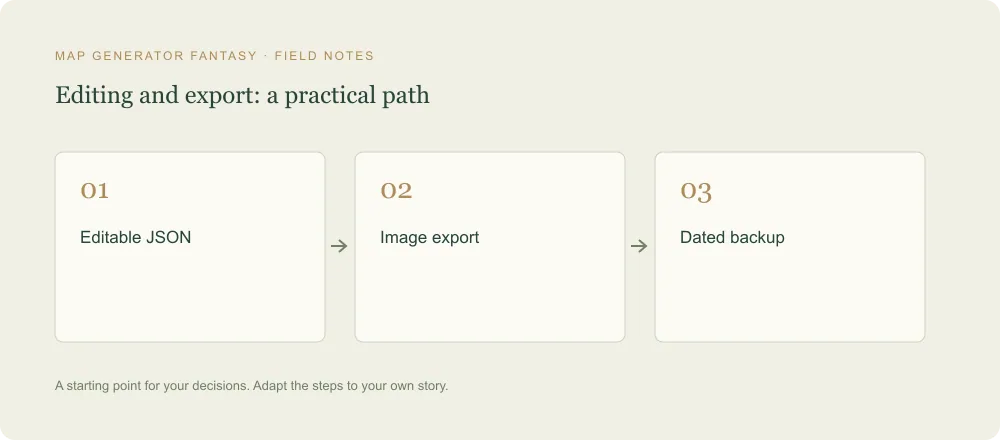
Before your next editing session, open the fantasy map maker and follow this small routine: identify the edition, save the source, reopen it, check distinctive edits, and retain the approved picture. Use the final review guide before distribution. A dependable editable map is a file you can find, understand, and verify, not merely one you remember downloading.
Give the idea a world of its own.
Try the technique in the generator, then save an editable copy so you can return to your work.
Open the map maker ↗