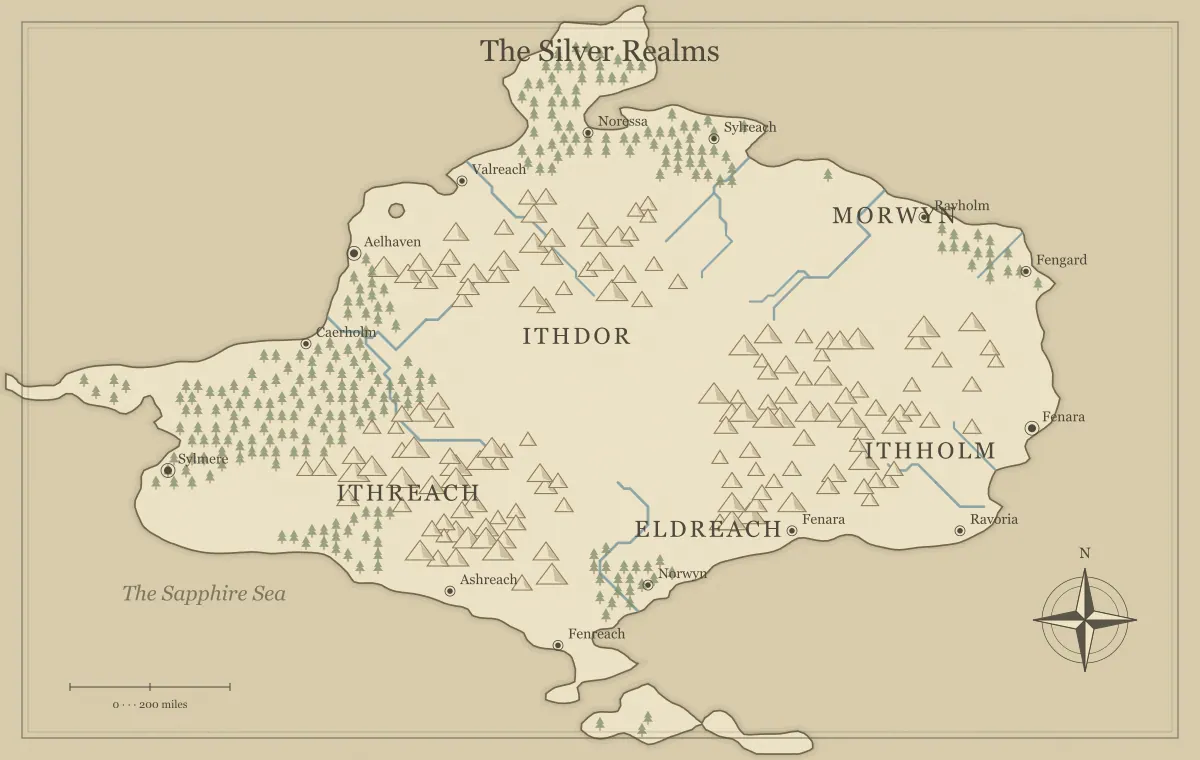
A fantasy map generator is most useful when it helps you make the next creative decision. You might need a coastline for a novel, a starting region for a tabletop campaign, or a visual home for an idea you have been carrying around. You do not need to understand cartographic software before you begin. You need a clear sense of what the map should help you do, followed by a small number of deliberate choices.
This beginner’s workflow uses the controls available in Map Generator Fantasy. It takes you from a short brief to an editable map you can save, share, or export. The aim is not to explain an entire imaginary planet in one sitting. It is to create a useful first version with readable places, enough geography to suggest a story, and a file you can return to when the idea grows.
Start with a brief that fits on one line
Write one sentence before generating anything. “A coastal region for a party searching for a lost observatory” gives you more direction than “a beautiful fantasy world.” The first sentence suggests a port, a journey inland, and a destination with a reason to be remote. It also gives you a way to judge the map: does this landscape offer a useful route between those places?
If you are writing a novel, your sentence might describe the physical problem facing the characters. A messenger must cross a divided continent before winter. A young sailor needs an island beyond a dangerous channel. A family lives near the last settlement on an old road. Keep the brief about the decisions the map can support. You can add dynasties, languages, and ancient wars later, after the first map has earned its place in the project.
Choose a scope before choosing a look
The map type changes the scale of the world you see. World provides several large landforms for an overview. Continent offers a broad regional canvas. Island gives you a visible boundary around a smaller setting. Archipelago produces a group of islands where movement across water can become part of the story. Pick the type that answers the question in your brief.
A common beginner mistake is starting with a whole world when the next scene takes place between two neighboring towns. The larger map may be exciting, but it invites decisions you do not yet need. An island or continent can provide a clearer starting point. If you are unsure, read the guide to choosing a fantasy map type. Treat the world overview and the local scene as different layers of information, rather than expecting one image to do every job.
Generate once, then observe before changing anything
Open the map maker and generate a map. Before pressing the button again, look for three useful features. Find a place where a settlement could begin, a terrain feature that complicates travel, and a distant part of the landscape that raises a question. You are not selecting the final setting yet. You are learning what kinds of ideas the geography gives you.
For the observatory example, a harbor could provide the starting town. A mountain ridge might create the difficult middle of the journey. A coast beyond that ridge could hold the observatory or the settlement that knows its location. If nothing in the map supports the brief, generate another version. If one strong feature does support it, consider keeping the map and editing around that feature. A useful imperfect map often develops faster than a search for a perfect random outline.
Understand what the world seed preserves
The seed is the number used to create the map’s underlying geography. With the same map type, settings, and generator version, it gives you a repeatable starting point. This makes a seed worth recording when you find a coastline you like. The art style changes the appearance; it is not a new planet. The feature-density controls let you change the amount of illustrated terrain while keeping the landmass.
A seed alone is not the entire editable project. Renamed places and added landmarks are separate decisions. To preserve those, save an editable map file or use a complete share link. Do not rely on remembering only a number after an afternoon of customization. The field note on fantasy map generator seeds explains the difference between the geography, the current settings, and the edits you have made on top of them.
Choose an art style that helps the map’s purpose
Parchment gives the map a warm, old-book appearance. Classic atlas uses cooler water and clear land colors. Pen and ink provides a restrained monochrome look. Watercolor softens the palette, while Nightfall produces a darker map. These are visual treatments of the same geography. Try two styles with the same seed before deciding which fits your project.
The best style is the one that helps the audience use the map. A dark atmospheric view might suit a digital reference, while a lighter map may be easier to annotate or print. If the map will become a player handout, look at it from a normal reading distance instead of judging it only when zoomed in. For a book, think about the surrounding pages and whether the map will be reproduced in color. Mood matters, but it should not erase the information.
Rename three important places before naming everything
Choose a starting settlement, a nearby point of interest, and one distant destination. Rename those first. Click a label to open its editor, then change the text to a name that makes sense in your setting. If the new name crowds a river or coastline, drag the label into a clearer position. You can also adjust the size, font, or color when a place needs a different level of emphasis.
Three deliberate names can make the map feel personal without creating a long naming session. For the observatory region, you might use Lantern Harbor, Ash Pass, and the Northern Watch. Those names already suggest shelter, a crossing, and a destination. Keep the remaining generated names as temporary prompts. You can return to them when the story visits those places. The fantasy name generator guide can help you create and test a shortlist when you need a different naming pattern.
Add details that change how the map is understood
The Add to map menu can place a text label, mountain, tree, castle, or town. Use these additions for a specific purpose. A castle may mark the destination of a quest. A new town may establish where a character grew up. A text label can name a ruin that has no generated settlement marker. You do not need to fill every open area with a symbol.
After adding a detail, ask whether it helps someone make a decision or remember the setting. A castle beside an already crowded label may make the map harder to read unless it has an important role. A landmark on an otherwise empty coast can make that part of the world feel worth exploring. Keep a short note describing why the element exists. When decoration and meaning disagree, preserve the meaning and move or remove the decoration.
Adjust terrain density with restraint
The fine-tuning panel changes the amount of mountains, forests, and rivers shown on the map. Start by adjusting one control, then look at the result at the map’s normal display size. More terrain symbols are not automatically more informative. A crowded mountain region can hide town names or make several routes look equally blocked. Lower density may give the audience a clearer view of the land.
Use the controls to improve the illustration, rather than to claim a precise climate or geological model. This generator makes fictional geographic artwork. It does not calculate every real-world process that would shape a planet. If you need a detailed climate explanation, write a separate brief and check whether the map’s visual cues agree with it. The field note on climate and biomes provides a way to make those story decisions without treating the illustration as a full simulation.
Check readability at the size people will use
Zooming in is helpful while editing, but it can hide problems with the final presentation. Reset the view and look at the whole map. Can you distinguish realm names from town names? Is the title clear without dominating the coastlines? Do any labels disappear into dense terrain? Move the most important labels into open space before adding more text.
Then imagine the audience’s device or page. A map that is readable on a large monitor may need a cleaner player version for a phone. A printed handout may need stronger contrast than a screen image. You can hide place names in the fine-tuning panel to create a less revealing version, or choose a style with a simpler palette. Keep the intended reader in the decision, rather than making the map understandable only to the person who designed it.
Save an editable file before exporting an image
The three-dot menu includes Save editable map. Use it when the map has names and landmarks worth keeping. The downloaded JSON file stores the settings and edits used by this generator. Open saved map brings that file back into the tool. Give the file a recognizable project name and keep it beside the exported images, so you can find the correct source later.
An image download is a different kind of file. PNG and JPG are fixed pictures, while SVG stores vector shapes and text that can be opened in other design software. The editable JSON file is the most direct way to resume work in this map maker. Avoid assuming that a PNG can be reopened here with its labels still editable. The guide to preparing a fantasy map for print and play explains how to choose the file format for each next step.
Run a small final review, then use the map
Before sharing, check the three places from your original brief. Are they easy to find? Does the route between them support the journey you wanted? Are the names spelled consistently in your map and notes? Download a test image and open it at a normal size. If the map includes private campaign information, check which labels will be visible to the recipients.
After that review, let the map do its job. Put it beside the manuscript, show it to the players, or add it to the project notebook. A beginner’s map does not need to be the final artwork for a published book. It needs to support the next stage of the story. Keep the editable file, record what changes during use, and return to the map when a real need appears. That is how a generated first draft becomes a world with a reason to exist.
Give the idea a world of its own.
Try the technique in the generator, then save an editable copy so you can return to your work.
Open the map maker ↗