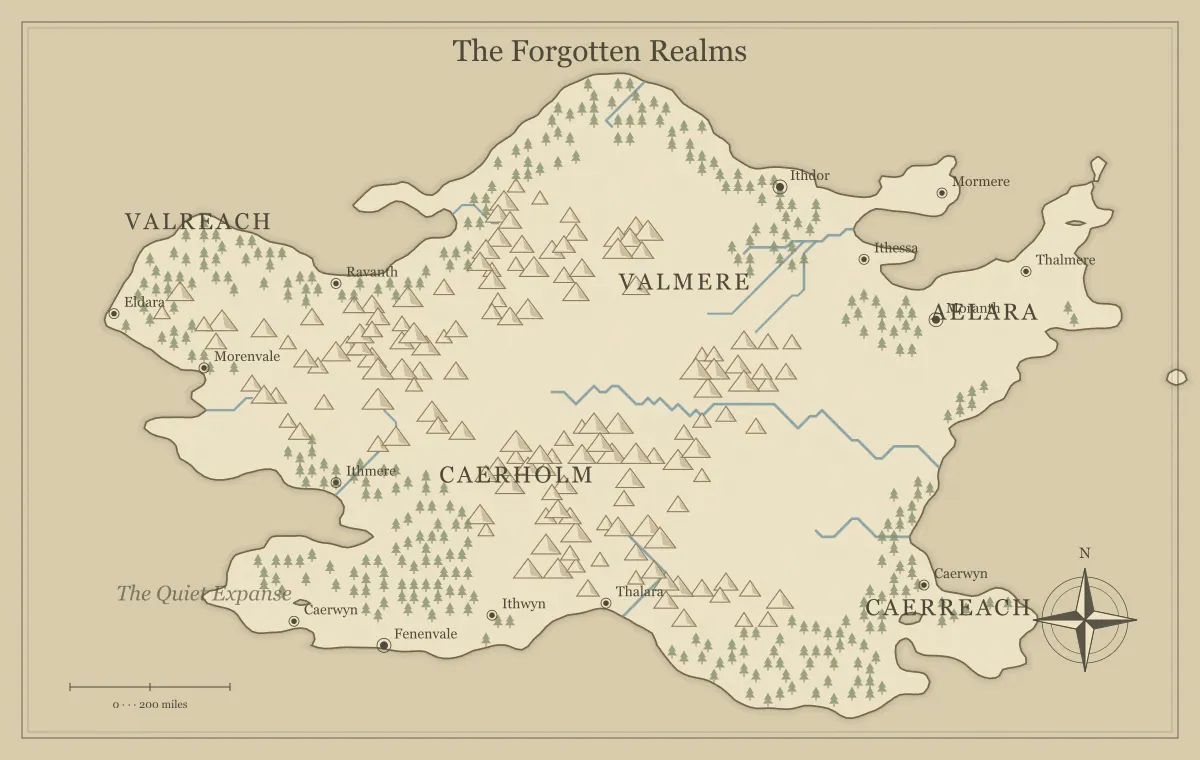
Editing a fantasy map works best when each change has a purpose. Rename a place because the story needs a clearer identity. Add a landmark because it supports a route, scene, or question. Move text because its relationship to a location is hard to read. This fantasy map maker supports those kinds of focused changes, but it is not an unrestricted geographic drawing application. Understanding the supported operations helps you finish a coherent map without expecting the tool to perform a different task.
This guide edits a fictional map called the Copperbell Reach. The creator needs a starting town, a watch station, and a distinctive ruin for a short adventure. The workflow separates generated terrain, generated labels, and added elements. Those layers of meaning behave differently in the interface, and confusing them can lead to an apparently successful edit that changes something other than what you intended.
Save a baseline before editing
Choose geography that broadly supports the project, then save an editable JSON and a picture of that starting edition. A saved baseline gives you a reference for comparison and a source to reopen. Do not begin a long naming pass while still changing seeds in search of a completely different coastline. Generating a new map resets supported manual edits for the new world.
Copperbell's baseline has a river corridor, a coastal settlement, and hills inland. The creator accepts those relationships before renaming places. The purpose is a journey from the coast to a watch station near the hills. If the generated geography cannot support the broad premise, it is better to choose another baseline now than to use labels to imply that the terrain moved.
The iteration guide and saving guide describe these checkpoints. A baseline does not prevent revision. It identifies the version from which a deliberate editing batch begins.
Distinguish terrain, labels, and extras
Generated terrain artwork includes coastlines, rivers, and symbols placed by the engine. Generated labels identify suggested places and regions. Added elements are supported extras placed through the add selector. Moving a generated label moves its text; it does not move the underlying city marker, mountain, river, or coastline. Moving a supported added symbol changes the position of that extra symbol.
For Copperbell, the creator renames a generated town near the coast. Dragging its new name away from crowded texture makes the text clearer, while the town marker remains at its generated location. If the creator drags the name across the river, the image could falsely imply a settlement on the opposite bank. The edit should preserve a clear association with the intended marker.
This distinction is central to responsible use of the tool. A label is not a terrain-editing handle. The generator does not offer unrestricted coastline drawing, freehand river editing, or political polygon construction. If your project needs exact geographic changes, keep the generator source and continue the appropriate artwork work in another application.
Rename a generated place
Click a supported label to open the name editor. Generated labels can also receive keyboard focus; Enter or Space opens the editor for a focused label. The dialog offers a place name, text size, ink color, and a limited lettering selection. Save the changes to update that label's presentation. The edited text becomes part of the supported map state.
Copperbell's creator changes a provisional town name to Bellhaven. The shorter name is easy to remember and differs from neighboring labels. The creator checks the surrounding map after saving, because a new name can have a different width even when the font size stays the same. A successful rename can still produce an overlap that needs a placement adjustment.
The naming guide helps keep names consistent, while the typography guide explains hierarchy and placement. Record significant name changes in your notes so the map, chapter draft, and campaign references continue to describe the same place.
Move text with care
Drag a generated label to a position that is easier to read while maintaining its relationship to the intended location. Use nearby open space where possible. A town name should not become equally associated with two different settlement markers. A regional name can occupy a broader area, but it should still clearly identify the region you intend.
Zoom in for precise adjustments, then reset or zoom out to inspect the full composition. A move that solves a local overlap may create an ambiguous association at ordinary viewing size. Review neighboring names too. Text moved away from mountains can cover a river crossing or another important label if you focus only on the original collision.
Pointer dragging is part of this spatial editing workflow. The label dialog supports keyboard activation and form controls, but the website does not provide a complete keyboard positioning system for every map operation. If pointer precision is difficult, favor clear generation settings, concise labels, and a simpler edition rather than assuming every drag has an equivalent coordinate field.
Add a supported landmark
Use the add element selector to choose text, mountain, tree, castle, or town. The interface then asks you to choose a position on the map. Place the intended element with a pointer action, and inspect the result. These supported extras provide a small vocabulary for emphasizing a place or adding a useful detail. They are not arbitrary uploaded icons or a freehand illustration brush.
Copperbell's watch station uses a castle symbol because its role is a fortified lookout. The creator places it near the intended hill approach and adds a text label separately. The symbol alone does not establish who owns it, whether it is ruined, or what its interior contains. Those details belong in notes or accompanying prose unless the map needs an explicit written explanation.
Added symbols can be dragged to adjust their location. Their handling differs from generated settlement markers, which are part of the existing terrain artwork. The interface limits the number of added elements, so use extras deliberately rather than treating them as unlimited decoration. A small map with a few meaningful additions is often easier to read.
Add a text label for a new feature
Choose text from the add selector and place it at the intended position. The name editor opens for the new text so you can replace the provisional wording and choose supported presentation settings. A text label can identify a supported extra landmark, explain an important region, or provide a short note. Keep its purpose clear and its wording concise.
Copperbell adds Watch of the Bell beside the new castle. The creator chooses a size that fits the hierarchy: stronger than incidental names but quieter than the map title. The label is moved slightly to avoid terrain, then checked alongside the symbol. The name and the castle remain visibly associated when the whole map is viewed.
Text extras should not imply capabilities that the underlying illustration lacks. Writing a new river name in open land does not draw a river. Naming a political boundary does not create an exact polygon. If the map's graphic relationship matters, prepare that relationship in an appropriate workflow and explain it clearly rather than using words to conceal a missing feature.
Remove text deliberately
The label editor includes a remove action for supported labels. Removing a generated label hides that text in the map presentation; it does not erase the underlying settlement symbol or terrain. Removing an added text label removes that text extra. Review the resulting image so you know what information remains visible. A marker without a name may still communicate a location to the reader.
Copperbell's creator removes an incidental settlement name that crowds the river corridor. The settlement marker stays visible as background geography. That is acceptable because the handout only needs Bellhaven and the watch station. The creator does not claim that the settlement no longer exists in the world merely because the map stopped naming it.
Do not interpret hidden labels as a security feature for editable sources or share links. Supported edit data can still communicate information beyond what a fixed picture displays. The audience edition guide and sharing guide explain why the whole artifact should be reviewed before distribution.
Use undo and redo as editing aids
The toolbar offers undo and redo for supported state changes. Outside text inputs, select menus, and an open label dialog, Control or Command plus Z invokes undo, while adding Shift invokes redo. These controls help compare a recent adjustment with its previous state. The history is bounded and belongs to the current editing session; it is not a substitute for named saved releases.
If a moved label becomes confusing, undo that move and try another position. If you accidentally change a setting, review what the restored state actually contains. Do not assume every application-level action, exported download, or external artwork change belongs to the generator's history. A downloaded image is a separate artifact, and edits made in another tool require that tool's own source management.
Copperbell's creator saves after approving the naming batch, then explores a more detailed landmark arrangement. If the experiment is unsuitable, the saved checkpoint remains a clear return point even if several subsequent changes have made the current undo sequence hard to interpret.
Review the editing batch against its purpose
Compare the map with the short list of intended changes. Bellhaven should be renamed, the watch station should be added, and the crowded river label should be removed. Check those outcomes explicitly. A map can look improved while missing one requested change or including an extra symbol added during experimentation.
Inspect the new relationships at ordinary viewing size. Does the watch station appear near the intended approach? Does its text belong to the castle rather than the neighboring town? Does removing a name make the river crossing harder to describe? Answer those questions before changing the art style or exporting, so you can distinguish content decisions from presentation decisions.
The ruins and landmark planning guide helps connect additions to the story. A landmark deserves space on the map when it gives readers a useful place, choice, or relationship. Decorative additions can be attractive, but they should not compete with the information that supports the project.
Check later settings changes
Once edits are approved, be deliberate about later generation settings. A new seed or map type creates a different foundation and can reset the supported edits. Terrain amount changes or a new style may affect how existing labels relate visually to the illustration. Save a checkpoint before substantial experimentation and inspect the result instead of assuming every choice preserves the same composition.
For Copperbell, the creator tries a simpler style after saving the approved source. The watch station still serves the same fictional purpose, but its label color needs another look against the changed background. The creator checks the full map and a fixed export. This review catches a presentation issue without confusing it with a change to the setting's history.
The style guide and seed guide explain these different choices. Treat a visual experiment as a new review state until you have checked the important names and additions.
Save and export the approved edition
Save the editable JSON after the batch is reviewed. Export the picture format appropriate to the destination and open the actual file. Check the names, landmark positions, audience, and important typography. If SVG is used in another application, inspect its text and artwork there. If a PNG or JPG is placed in a small layout, inspect it at the intended size.
Use matching edition identifiers for the source, image, and notes. Copperbell creator 02 contains the reviewed changes, while Copperbell player 01 is the picture selected for the session. The notebook records which source produced that picture. A later collaborator can understand the handoff without guessing from download times or similar filenames.
Use the format comparison for export roles and the final review checklist before distribution. The editing batch is finished when the supported changes represent the intended places clearly and the saved artifacts preserve an identifiable edition.
What the Copperbell result achieves
The final map has a memorable starting town, a useful watch station, and fewer crowded names near the river. It does not pretend the town marker moved when its text was repositioned, and it does not claim that a castle symbol creates a tactical interior. The accompanying notes explain the landmark's role. Each artifact does the job it is suited to do.
Return to the fantasy map maker with a similarly focused batch. Choose an approved baseline, distinguish the editable elements, make useful changes, inspect their relationships, and save the reviewed edition. Deliberate editing can turn a generated starting map into a coherent setting without requiring the tool to provide every kind of geographic or graphic design control.
Give the idea a world of its own.
Try the technique in the generator, then save an editable copy so you can return to your work.
Open the map maker ↗