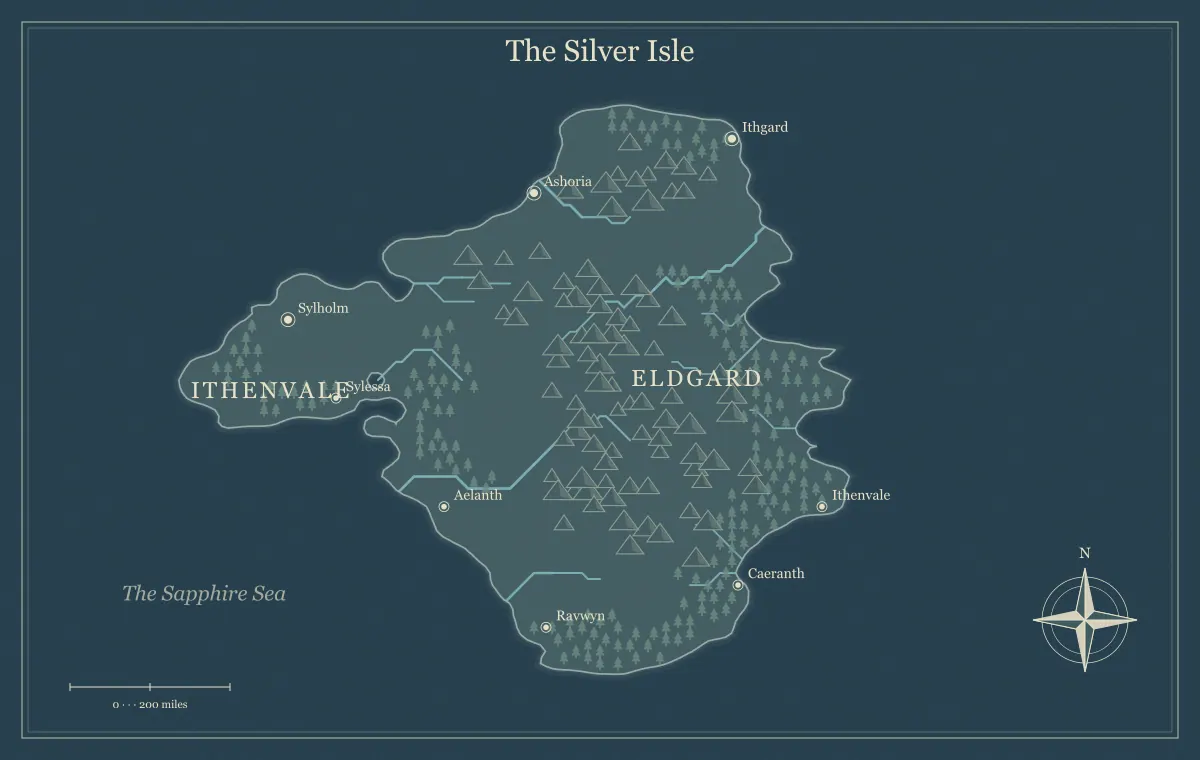
A fantasy map maker on a phone or tablet is useful for capturing an idea when you are away from your main computer. You can try a coastline, rename a place, or review a campaign region during preparation. The smaller screen changes the workflow, though. Controls, labels, and touch gestures share limited space, and a large export can demand more memory than a quick preview. A comfortable mobile workflow treats the device as a focused creative tool rather than asking it to show every detail at once.
This guide uses the fantasy map maker to develop a fictional island called Bracken Isle. We will choose terrain, inspect the map, edit a few essential labels, and save a recoverable version. The advice applies to touch devices without assuming that every browser supports identical fullscreen, clipboard, or download behavior. Use the controls available in your browser and keep a saved file before an important change.
Choose one small task for the session
Begin with a concrete task: select the island shape, rename the home port, review labels, or export a player overview. Trying to do all of those at once can make the limited viewport feel more restrictive than it needs to be. For Bracken Isle, the first session's goal is choosing a coastline with a sheltered bay and enough inland space for a ridge. We can leave detailed naming for the next pass.
A short task also makes interruptions easier to handle. If you have only ten minutes, a saved terrain draft is useful progress. You do not need a complete world before closing the browser. The map maker fantasy workflow separates planning, geography, labels, and export into stages. On a small screen, those stages become natural stopping points instead of one long editing session.
Use orientation to improve working space
A portrait phone is convenient for reading controls and explanatory text. Landscape orientation can give a wide map more room, especially when you need to compare opposite sides of an island. Try the orientation that supports the current task. If the browser or device locks rotation, work within that constraint and use the zoom controls rather than assuming the map needs to fit every detail into the initial view.
Keep the distinction between page scrolling and map interaction in mind. The surrounding page lets you reach controls and articles, while the map viewport handles exploration gestures. If you need to move to another part of the page, begin the gesture outside the interactive map. A tablet usually offers more simultaneous space, but the same principle applies: choose whether you are operating the page or the map before dragging.
Generate a limited set of candidates
Use the map type control to choose an island, then generate a few candidates. On a small display, judge broad relationships first: coast, bay, inland area, and major barriers. Do not try to evaluate every town name while the full image is reduced. Save a candidate that meets the brief before producing another, especially if you are switching between applications to keep notes.
For Bracken Isle, look for a bay that can become the home port and a ridge that creates a meaningful inland route. A useful candidate is one you can explain, not necessarily the one with the most intricate silhouette. Record its seed and settings, but also save the editable project when you begin manual edits. The seed guide explains why a repeatable starting point and a finished working file are related but different forms of preservation.
Zoom to answer a question
The map provides zoom controls, and supported touch interaction can use a two-finger pinch. Zoom in for a specific question, such as whether the port label collides with the coastline. Then return to a wider view to understand the composition. Staying deeply zoomed while making many edits can hide the consequences elsewhere on the map. A label that looks comfortably spaced in close-up may compete with a region name in the complete overview.
Use the reset-view control when you lose your bearings. It returns the map to a useful overview instead of requiring repeated reverse gestures. For Bracken Isle, alternate between the whole island and the home bay. This gives you both orientation and local detail. Zoom changes how you inspect the image; it does not necessarily change the resolution of a later export, so choose export scale separately according to the destination.
Pan deliberately and recognize editable elements
Dragging the map area can help you explore a zoomed view. Labels and added elements can also be draggable editing targets. Begin a navigation drag in open terrain or water when you want to move the view, so you do not accidentally move a label. If you do move a label unintentionally, use Undo and verify that the text returns to its intended position before continuing.
Touch input has less precision than a mouse, so work with one target at a time. Zoom to the relevant area, make the change, and review it. Avoid repeatedly tapping a crowded cluster while hoping the right element will be selected. If the target remains difficult, a larger tablet or later desktop pass may be more efficient. The landmark editing guide describes the available additions and how to keep each change purposeful.
Edit the most important labels first
Open a label's editor to change its text and supported appearance settings. Start with the home port, island name, and major destination. For Bracken Isle, those might be Bracken Quay, the island title, and Grey Watch. A small set of clear labels gives you a usable draft without requiring extensive typing on a phone keyboard. Keep longer cultural explanations in your notes rather than squeezing them into the image.
After saving a name, inspect it at the full-map view as well as in close-up. Mobile autocorrect can introduce unexpected spelling, and long text can extend beyond its original space. Compare the label with your name register and correct it before exporting. The fantasy naming guide explains how to choose distinct spoken names, while label typography covers size and hierarchy at the final viewing scale.
Use fullscreen where the browser supports it
The fullscreen control can provide more map space in browsers that support the requested behavior. It is useful when interface elements make a close review awkward. Browser and device support vary, so an unavailable fullscreen action is not evidence that the map itself is broken. The tool can report that fullscreen is unavailable, and you can continue using orientation, zoom, and the normal viewport.
When fullscreen works, make sure you know how to leave it using the available browser or site control. Review one area, then return to the controls when you need to change settings. Fullscreen improves the inspection area; it does not remove the need to save work. If you are about to switch applications or end the session, download an editable file rather than relying on the current display state to remain available indefinitely.
Choose interface and artwork separately
The website starts in dark mode unless you have saved a different preference. The theme button lets you choose light mode, and the choice is remembered when local storage is available. Use the interface appearance that feels comfortable in your environment. This setting affects the surrounding website, not the map's fictional geography or its selected art style.
The map palette is a separate decision. A dark interface can hold a pale parchment map that is destined for print. A light interface can hold a Nightfall map meant for a screen. Compare artwork at the final destination rather than matching it automatically to the website theme. The art style guide explains the palettes through readability and mood, including why a print version may need a different presentation from an online overview.
Save before leaving the browser
Use Save editable map to download a JSON file containing the supported settings and edits. The file gives you a deliberate way to return to Bracken Isle on the same device or another one. Find where the browser saved it and give it a meaningful project name if your file workflow allows. A download you cannot locate later is less useful than a clearly organized project folder.
Local storage can remember recent state, but browser data may be cleared and different profiles do not automatically share it. Private browsing can change persistence too. Keep the JSON and a reference image for important maps. The save and reopen guide explains how to inspect the restored project, while settings sharing covers moving a map through a link without treating the link as private storage.
Choose a modest export first
Raster exports require the browser to create an image canvas. Higher scales increase dimensions and memory use, so begin with a scale appropriate to the intended destination. A phone preview or group chat often does not need the largest export. If a raster download fails on your device, the tool can suggest SVG as an alternative. Save the editable file first so an export problem does not threaten the only copy of the work.
Open the downloaded image and verify its labels, title, and complete frame. If you need a high-resolution print, you can transfer the editable file to a device better suited to that export and check the result there. The export guide explains file formats and dimensions. The important distinction is between generating a usable draft on a small screen and producing a large final asset for a particular publication workflow.
Continue on another device without losing the project
Transfer the saved JSON using a method you trust, then open it with the generator's saved-map import control. Confirm the geography, title, and manual edits before making new changes. Also compare the restored map with your reference image. A different browser may display typography slightly differently, so inspect the actual output when the destination matters.
Keep a simple version note describing the mobile session: “Bracken Isle terrain selected and three labels approved.” The next session can then begin with the remaining task instead of rediscovering your decisions. A fantasy map maker on a phone or tablet succeeds when it helps you make focused progress, preserve the result, and continue comfortably. You do not need to finish every detail on one device to create a coherent world.
Give the idea a world of its own.
Try the technique in the generator, then save an editable copy so you can return to your work.
Open the map maker ↗