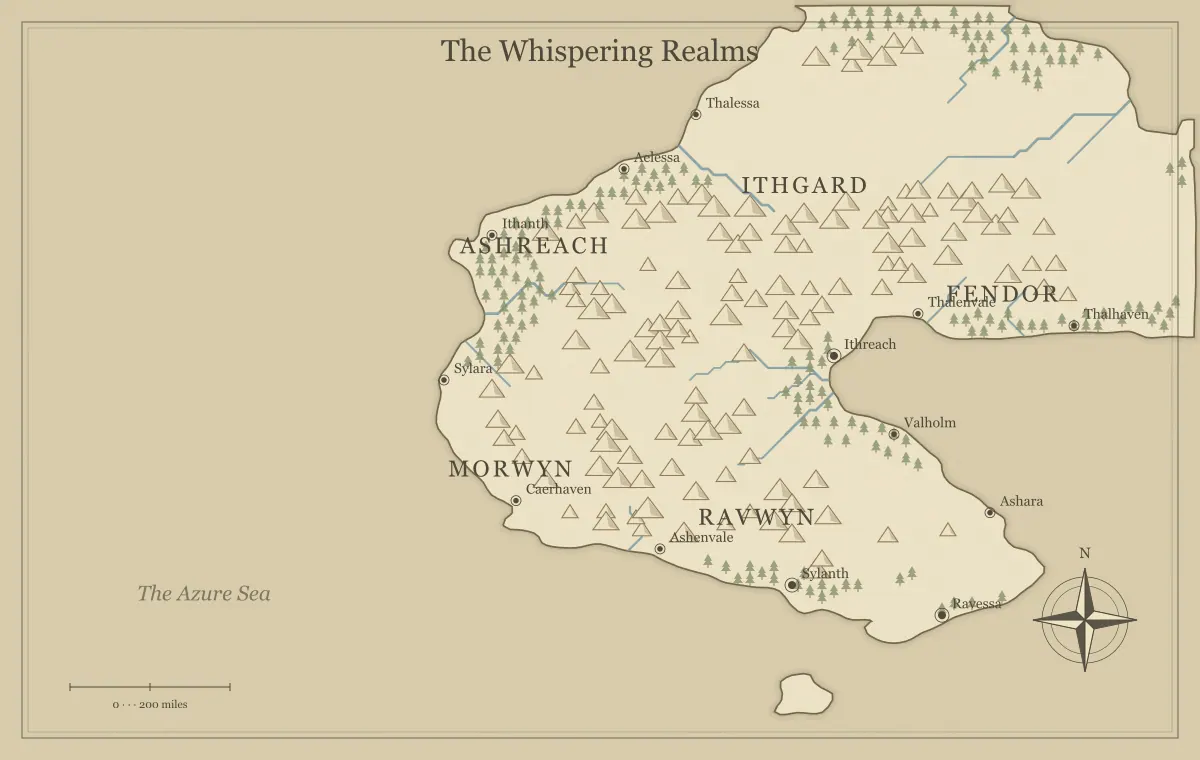
Printing a fantasy map is a decision about both image detail and physical size. A large pixel count can support a clear print, but it does not guarantee that the smallest labels will be comfortable to read. The important questions are how wide the map will appear on paper, how much detail the export contains, and whether the design still works at that placement size. Solve those questions before ordering a large poster or committing a map to a finished booklet.
This guide prepares a fictional map called the Frosthaven Reach for a planning sheet, a booklet spread, and a wall reference. Its calculations use this fantasy map maker's actual raster export dimensions: a base of 1200 by 760 pixels, multiplied by the selected resolution. The examples are planning calculations, not promises about a particular printer. Confirm the production provider's current requirements for the final document, especially when trimming, binding, color conversion, or bleed is involved.
Choose the physical placement first
Write down the intended width and height of the map itself. Do not confuse the paper's dimensions with the available image area. A page may reserve room for a caption, margins, a running header, or binding. A poster may include a title outside the map. These choices reduce or change the area into which the image will be placed, so calculate from the final image area rather than the name of the paper size.
Frosthaven's booklet designer wants the map roughly eight inches wide within a page layout. The wall reference will be wider and viewed from farther away. Those two uses need different design checks even if they share geography. The booklet may need fewer names because its physical lettering is smaller. The wall version may need stronger hierarchy because readers stand back to discuss the setting.
The export format guide explains the available files. Choose a format your layout application and production provider accept. A suitable source is only the beginning: the way it is placed inside the document determines its effective size and the amount of detail available at that size.
Understand pixels per inch as a relationship
Pixels per inch, often shortened to PPI, describes how many image pixels are assigned to one inch of printed width or height. It is calculated from pixel dimensions and physical placement. It does not create new geographic detail or make a label physically larger by itself. If the same image is stretched across twice the width, its effective PPI is halved while all its features occupy twice the physical size.
Use two simple calculations. Divide image pixels by the intended inches to find effective PPI. Divide image pixels by a chosen PPI to estimate the corresponding physical size. Perform the calculation separately for width and height when needed. If the image is placed proportionally, both dimensions should reflect the same scaling relationship. If it is distorted, the relationship differs and the geography can appear stretched.
Printer dots and image pixels describe different parts of production. Avoid treating a printer's advertised dots per inch as the number you must enter for every source image. For this workflow, the actionable question is whether your image has sufficient pixels at its planned placement size, according to the destination's actual requirements and an inspected proof.
Use the generator's actual dimensions
The 1× raster export is 1200 by 760 pixels. The 2× export is 2400 by 1520. The 3× export is 3600 by 2280. The 4× export is 4800 by 3040. These are PNG or JPG output dimensions. Choosing the SVG format downloads vector artwork directly rather than producing a raster image at one of those pixel sizes.
At a chosen planning target of 300 PPI, the 4× width corresponds to sixteen inches because 4800 divided by 300 equals sixteen. Its height corresponds to approximately 10.13 inches because 3040 divided by 300 is approximately 10.13. This is an arithmetic example, not a universal production specification. A provider may have different requirements, and your design may need a different treatment based on the viewing distance and small lettering.
At eight inches wide, a 2× export has an effective width resolution of 300 PPI because 2400 divided by eight equals 300. A 4× export placed at that same width has 600 PPI. The map's labels occupy the same physical size in both placements if the artwork is otherwise identical. The larger export can provide more image samples, but it does not transform a tiny name into a comfortably large one.
Preserve the map's proportions
The base illustration is wider than it is tall. When placing it in a layout, preserve its aspect ratio unless you are deliberately cropping. Stretching it to fill an unrelated rectangle changes coastline shapes, symbol proportions, and lettering. A round compass can become an oval. That distortion can make a careful map look unintended even when the file contains sufficient pixels.
At eight inches wide, the proportional height is approximately 5.07 inches, calculated as eight multiplied by 760 divided by 1200. If the available space is taller, decide whether to leave breathing room, add a caption, or change the layout. If the space is narrower or taller in another way, use a controlled crop only after checking which names and geographic relationships it removes.
Frosthaven's designer keeps the booklet map proportional and uses the remaining space for a short location key. The choice improves readability without squeezing the drawing into the page. The typography guide can help simplify names before you use cropping or distortion as a solution to a crowded layout.
Check physical label size separately
Inspect the smallest important label at the planned print size. A sharp letter can still be too small. If the reader needs to find a town during a game, that town should not become an almost invisible mark in the booklet. Enlarging the export multiplier increases pixel dimensions while preserving the drawing's proportional composition. It does not automatically redesign the label hierarchy.
Frosthaven's first eight-inch placement makes its title clear but leaves two relevant villages difficult to read. The designer returns to the editable map, enlarges those supported labels, shortens one long name, and moves text away from dense symbols. A new export is then placed at the same physical width. That revision solves a design problem rather than trying to solve it only with more pixels.
Review the map from the expected reading distance. A handout held close, a table reference shared by several people, and a wall poster across a room serve different readers. If one composition cannot serve them all, prepare separate editions with consistent geography and different amounts of detail. The distinction is especially useful when a poster tempts you to retain information that disappears in a small booklet.
Inspect fine lines and texture
Terrain texture can enrich a fantasy map while making a printed edition busy. Check river lines, coastline edges, small settlement markers, forest clusters, and mountain symbols. Look for features that become indistinct when the map is reduced. A busy region may need fewer displayed details or a simpler art style. The generator's terrain controls change broad amounts; they do not provide unrestricted deletion of each baked terrain symbol.
Use a fixed export to examine the approved composition. If your layout application displays a low-detail preview for performance, distinguish that preview from the final placed file before concluding that the export is poor. Open the actual downloaded image and compare its dimensions with the file being used in the layout. A small preview accidentally substituted for the approved image can undermine an otherwise correct calculation.
The art style guide helps choose a suitable presentation. A style that looks excellent on a bright screen may need a different treatment on paper. Print review should include the map's visual density and clarity, not merely whether the file properties contain a large number.
Make a grayscale readability proof
A grayscale proof is useful even when the final map will be printed in color. It reveals whether labels, regions, and symbols depend on hue alone. If two adjacent areas become similar shades, a reader may struggle to distinguish them in a photocopy or on an ordinary monochrome printer. Preserve the color source while making a separate proof in your chosen layout or image application.
Frosthaven's two region names remain distinct because they are written clearly and placed in different open areas. A pale river line becomes difficult to follow beside forest texture, so the designer considers a simpler style and a written route description. The goal is not to turn every feature black. It is to ensure important information survives the actual method of distribution.
The black and white map guide develops this pass in detail. Treat its principles as design checks rather than a claim that the generator automatically prepares every map for a specific press. The final production document remains something you must inspect in its receiving application.
Account for the production layout
Follow the printer or publisher's requirements for page size, trim, margins, binding, and any required bleed. These requirements vary by destination and can change, so verify the instructions for the actual job. Do not guess a standard allowance and assume it applies to every booklet or poster. The generator exports a map illustration; it does not create a complete print-ready book interior.
A map extending across a booklet's center may lose useful information near the binding. Keep essential labels and route relationships away from an area readers may not see comfortably. If the layout splits the map across two pages, examine the full spread and each individual page. A region name divided awkwardly between pages can be difficult to follow even if no pixels are technically missing.
For Frosthaven, the designer keeps a critical crossing away from the center fold and adds a caption outside the illustration. The map's decorative frame is reviewed against the available margins. A frame very close to trim can expose alignment differences more visibly than open space, so its placement deserves a production proof rather than an assumption based on the browser view.
Use SVG deliberately in a print workflow
An SVG may support further vector artwork preparation in a compatible program. Its shapes can be displayed at different sizes without beginning as a fixed raster grid. Nevertheless, text, effects, imported grouping, and the receiving program's output settings still matter. Open the actual SVG and compare it with a fixed image reference of the approved map. Do not assume importing the file guarantees identical appearance.
Check font substitution and long names particularly carefully. If your production application requires text outlines or a particular output format, follow its workflow while preserving a separate editable artwork source. A final outlined file serves production, while a working file with text may be easier to revise. Neither replaces the generator JSON needed to reopen supported settings and edits on this website.
For a simple handout, a reviewed PNG can be a more straightforward choice than a vector editing detour. For extensive artwork preparation, SVG may be useful. Choose according to the actual production task, accepted files, and your ability to inspect the result. The format is a tool, not a guarantee of print quality.
Print an actual-size sample
Before a substantial print run, make an actual-size sample of the important areas where practical. Check that the print dialog or layout has not silently scaled the image to fit a different page area. A sample printed smaller than planned tests a different condition; one printed larger can hide problems with tiny labels. Identify the placement size used for the proof.
Read the sample under ordinary conditions. Find three important locations, trace the intended journey, and inspect the busiest area. Ask another reader to do the same without giving them directions to each name. Their hesitation can reveal ambiguous label placement or excessive density. This review tests the map's use, rather than only whether its colors look pleasing.
If a local proof uses a different printing method from the final job, it can still reveal layout and physical lettering problems. It does not prove that the final colors or paper behavior will match. For those questions, review the destination's proof process. Keep the approved source and the final submitted document identifiable so the proof can be compared with the correct edition.
Release the Frosthaven print edition
The booklet edition uses an eight-inch proportional placement, a checked raster export, simplified relevant labels, and a short place key. The wall edition uses a larger placement and stronger emphasis on the locations discussed across the room. Both retain the same approved geography. The creator saves the generator JSON, each image export, and the layout source with clear edition names.
A note records the planned physical sizes and the proof reviewed. If the booklet later changes page size, the designer knows to recheck the map instead of assuming the earlier approval still applies. The same calculation and readability passes can be repeated without regenerating the world or guessing which export was used last time.
Continue with the final review checklist and saving workflow, then return to the fantasy map maker for any necessary label changes. A good printed map combines enough image detail, a sensible physical size, and a design that readers can actually use.
Give the idea a world of its own.
Try the technique in the generator, then save an editable copy so you can return to your work.
Open the map maker ↗