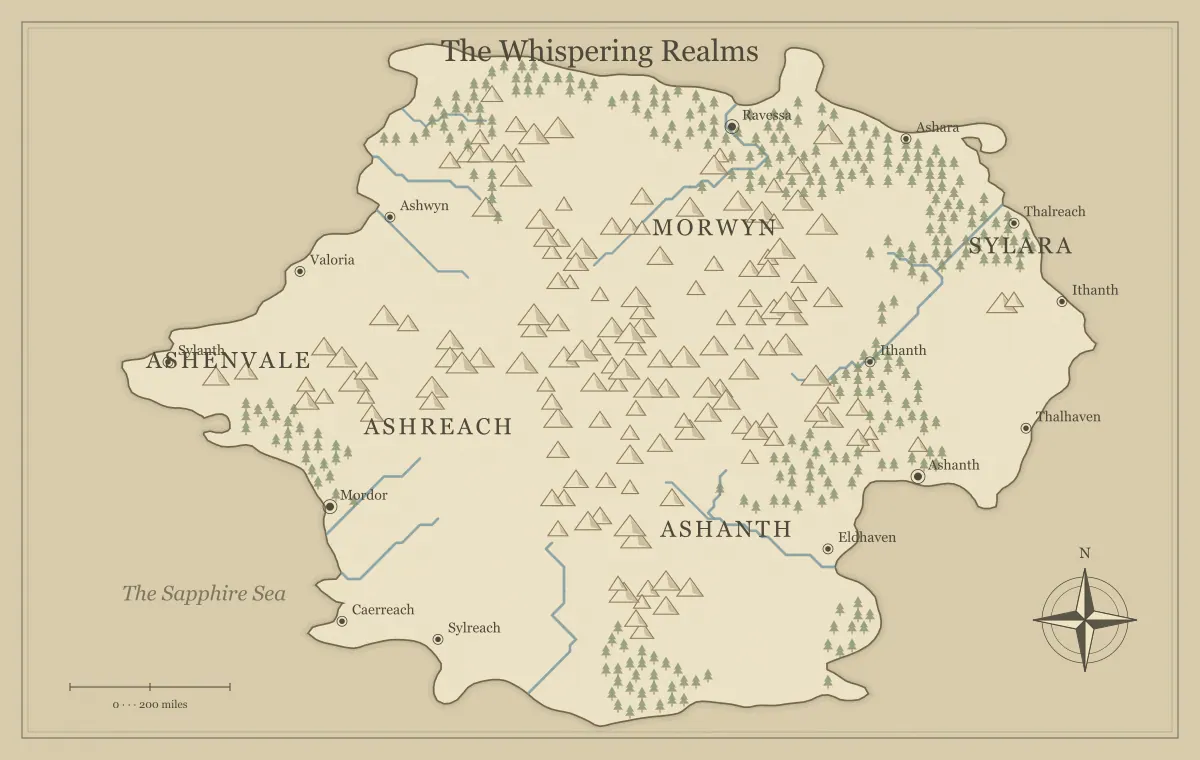
Exporting a fantasy map is a design decision, not just the last button you press. The same coastline can become a sharp print handout, a lightweight image for a group chat, or a flexible illustration for a book layout. Each destination changes the file format, useful dimensions, and amount of detail you should keep. A map that looks excellent in the editor may be difficult to read after a messaging app shrinks it or a printer reduces it to fit a page.
Map Generator Fantasy supports PNG, JPG, and SVG picture exports, plus an editable JSON file for returning to your work. This guide explains what those files preserve, how to choose a useful export size, and how to verify the result before sharing it. Create a working map with the fantasy map maker, then follow the steps with a specific destination in mind. The goal is a file your audience can actually use.
Begin with the destination
Write down where the map will appear: a printed sheet, a virtual tabletop, a website, a presentation, or a book. Then identify its display size. A full-screen image on a large monitor requires more pixels than a small preview beside a paragraph. A printed page has physical dimensions and margins. A tabletop platform may impose upload limits or resize images automatically. These constraints are easier to handle before you produce several large files.
Also decide who will receive the map. A player version should omit secrets that belong in the game master's notes. A public web version may need only major labels, while your private planning image can contain every settlement. Save those as distinct exports with clear filenames. The player and game master map guide covers the information split; the export process should preserve that distinction rather than mixing both audiences into one picture.
Understand the three picture formats
PNG is a useful general choice for map artwork because it preserves hard edges and text without the lossy compression used by JPG. It works well for handouts, screen display, and many tabletop tools. A large PNG can still be a substantial download, so use dimensions appropriate to its purpose. Bigger is not automatically better when the audience will view the map at a small size or on a slow connection.
JPG is useful when a smaller file matters more than perfectly crisp tiny labels. It compresses the picture, which can soften lettering and introduce artifacts around thin lines. Inspect the exported image before committing to it. SVG stores shapes and text as vector markup rather than a fixed grid of pixels. It is useful for scaling and further layout work, but different applications may interpret fonts or features differently. The PNG, SVG, and JPG comparison examines these tradeoffs in more detail.
Save the editable file before the image
An exported picture is a snapshot. You can annotate it in another application, but it does not provide the generator with the original settings and editing data. The editable JSON download serves a different purpose: it allows supported map settings and edits to be imported back into the tool. Save that file before a final image export, particularly if you have renamed places or moved labels. It is the most direct route back to the version you intended to keep.
Keep the JSON beside the picture with a matching base name, such as lantern-coast-player-v3.json and lantern-coast-player-v3.png. The image is the distribution copy; the JSON is the working copy. If you later change a title or discover a typo, reopen the working data and export again. Read how to save an editable fantasy map for a practical backup routine that does not depend on remembering one browser's stored state.
Choose pixel dimensions deliberately
The export scale changes the pixel dimensions of raster images. A higher scale creates more pixels and usually a larger file, with greater memory use while the browser renders it. Start with the smallest scale that supports your destination. If labels become blurry when viewed at the final intended size, try the next scale and compare. Do not assume that your maximum available export is necessary for every sharing task.
For print planning, pixel dimensions and physical size are related. An image that is 2400 pixels wide placed at eight inches wide provides 300 pixels per inch at that placement. The same file at twelve inches wide provides 200 pixels per inch. These are arithmetic examples, not a promise of print quality: paper, ink, contrast, line thickness, and the printing process also matter. Judge a real test print whenever the map has an important physical use.
Prepare a print version
Open the downloaded map in your layout or print application and set its physical size. Leave space for margins instead of assuming artwork can reach the edge of every printer's sheet. If the map includes a frame, verify that the frame is not clipped. Check the title, smallest essential town names, and narrowest river lines. These often reveal problems sooner than the broad coastline does.
Print a small test or one representative section before producing multiple copies. A parchment background that looks gentle on screen may use considerable ink, while a pale label may disappear on inexpensive paper. Consider a simpler palette for repeated handouts. The monochrome print guide explains how to preserve meaning without relying only on color. For a detailed page setup, see fantasy map print resolution and keep the tested export as your production reference.
Prepare a screen version
A screen map should be readable at the display size your audience will use. Open the image on an ordinary phone as well as a desktop if both matter. A beautiful full-resolution export may turn into a confusing thumbnail when posted in a chat. Make a simplified version with fewer labels if the main purpose is introducing the region. Offer a larger download separately when readers need to inspect details.
Use a descriptive filename, for example reed-coast-overview.png, instead of an ambiguous sequence of downloads. For a website, add useful alternative text describing the map's purpose and its important geographic relationship. Do not cram every town name or keyword into that description. A caption can explain the scenario, while nearby prose provides essential information that a reader cannot obtain from the picture alone. A map image should support the page, not contain its only explanation.
Check SVG files in the receiving application
SVG is helpful when you expect to resize the map or place it into a vector-based layout. Its coastline and symbols can remain sharp at different sizes, but a receiving application may substitute a font or lay out text slightly differently. Open the file in the application you actually plan to use and inspect labels near coastlines, borders, and neighboring markers. A successful browser preview does not guarantee identical output in every editor.
If the layout application changes the lettering, you can choose an available font there, adjust spacing, or use a raster export that preserves the appearance you verified. Keep the original SVG before making external edits. Some editing workflows convert text into paths, which can preserve appearance but reduce text editability and accessibility. Make that choice deliberately in the receiving tool rather than assuming that all vector workflows preserve the same capabilities.
Check virtual tabletop requirements
World and regional maps are often used as campaign overviews in a virtual tabletop. They are different from encounter maps designed around tactical squares. Avoid placing a combat grid over a regional map and treating every square as an immediate movement unit without deciding the scale. A broad campaign map helps players choose routes; an encounter map handles precise positions during a scene. Each needs its own level of detail.
Before uploading, check the platform's current supported formats, upload limits, and image handling. Those details can change, so confirm them in that platform's documentation. Test the map at the zoom levels your group will use and verify that labels are readable through any interface overlays. Keep the full-size original outside the platform. The virtual tabletop map guide focuses on preparing a usable overview and avoiding accidental exposure of private campaign information.
Treat share links and files differently
A settings share link opens the generator with encoded map information. It is convenient for returning to or discussing a map, but it is not the same as handing someone an immutable image. The recipient may regenerate, edit, or export their own version. A saved picture is easier when everyone needs to refer to the same visible handout. Use the link for collaboration and the image for a fixed published version.
Review the names and edits before you send a link. Encoded fragments should not be treated as a private vault: anyone who receives the full link can read or use the information it contains. Avoid placing passwords, personal details, or confidential notes in map labels. See sharing a fantasy map link for versioning and recipient checks. A clearly named file can also prevent confusion when several versions circulate in the same group.
Inspect the downloaded file itself
After exporting, open the actual downloaded file rather than relying entirely on the editor's preview. Confirm that the whole map appears, that the chosen style survived, and that labels are present where you expected. Zoom to the normal viewing size before judging tiny details. A flaw visible only at extreme magnification may be irrelevant to a small handout, while an unreadable capital name at ordinary size needs correction.
Check that you exported the intended version. The title, visible secrets, filename, and map style are useful clues. If you accidentally downloaded the game master's map, do not send it and hope players ignore the extra markers. Return to the player version and export again. For an important publication, ask another person to inspect the picture without explaining what they should see. Their first questions often identify missing context more reliably than another technical format change.
Build a small export archive
A practical archive contains three things: the editable JSON, the approved picture, and a short note describing its purpose. That note might say “player overview for session five, printed at eight inches wide” or “novel draft map, place names still provisional.” It helps you understand a file months later and prevents an early working export from being mistaken for a final release.
Keep an earlier approved version when you make a major change. You do not need a complex system; two or three clearly dated folders are often enough for a small project. Once the map is delivered, record the destination and any adjustments you made for it. The final map review checklist connects these export checks to geography, labels, and audience information, so your finished file remains a useful map as well as an attractive image.
Give the idea a world of its own.
Try the technique in the generator, then save an editable copy so you can return to your work.
Open the map maker ↗